

Change storage directory location
It is advisable to create a restore point, Windows user data backup and/or system image before changing the structure of any software program and associated data. At the very least make a temporary backup of the default storage folder on a USB drive just in case.
Please read all points carefully before attempting this procedure.
To change the storage location if you already have created backups using the default location, please take the following steps:
-
Create a new directory where you would like to save your data. This might be a different or new directory on the system disk or, a new directory on a data disk, a network-attached storage drive or a server location. E.g. D:\Users\[CURRENT_USER]\AppData\Roaming\MOBILedit Phone Manager_NEW
-
Any existing data files are stored on the system drive if this was used for the original installation. E.g C:\Users\[CURRENT_USER]\AppData\Roaming\MOBILedit Phone Manager.
-
Copy all of the .dat data files except for 00000001.dat and paste them to the new location.
-
Run MOBILedit Phone manager.
-
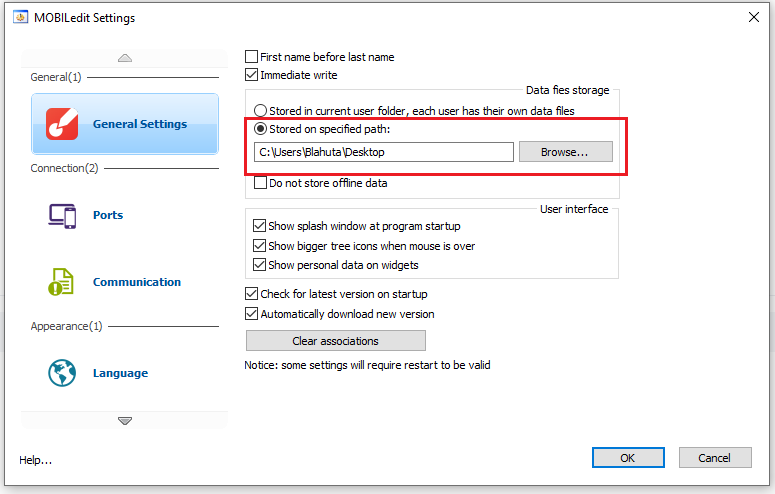
Open and select "Settings=>General settings=>Stored on specified path=>Browse", select the new storage directory and then click OK. (See image below)
-
MOBILedit Phone Manager will restart and you will see all of your previous backups and any new or additional backups will be saved to the new directory.
-
Once you have confirmed that the procedure was successful you can delete the .dat files in the default location leaving 00000001.dat and MOBILEditUpdate.exe in the default directory.
Please bear in mind that using a network location for storing your data might slow the write speed down and take longer to create the backups.